Understanding Why Printers Go Offline
Modern printers are complex devices that rely on multiple interconnected systems to function properly. Understanding the communication chain helps identify where problems occur.
The Printer Communication Chain
Common Causes of Printer Problems
Network Disconnection
The printer loses its Wi-Fi connection or IP address changes, preventing the computer from locating it.
Driver Corruption
Outdated or damaged drivers fail to translate print commands into printer-readable language (PCL/PostScript).
Stuck Print Queue
Corrupted print jobs remain in the spooler, blocking all subsequent print requests.
Firewall Blocking
Security software blocks essential printer ports (9100, 515, 631) needed for communication.
Method 1: Basic Troubleshooting Steps
Start with these fundamental checks that resolve 60% of printer issues
Perform a Complete Power Reset (Cold Boot)
A power reset clears the printer's temporary memory and resets internal electronic states. This simple procedure resolves many transient issues.
Detailed Steps:
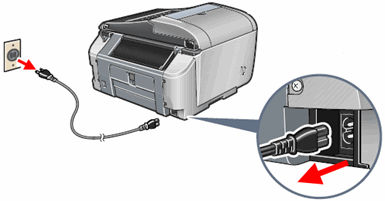
Inspect All Cables and Physical Connections
Physical connection problems are among the most common yet overlooked causes of printer failures. A systematic inspection reveals hidden issues.
USB Connections:
- Try a different USB cable (cables degrade over time)
- Use a rear motherboard USB port (front ports can have power issues)
- Avoid USB hubs—connect directly to the computer
- Ensure the cable is USB 2.0 certified or higher
Ethernet Connections:
- Verify both ends of the Ethernet cable are firmly clicked in
- Check for lit LEDs at both connection points
- Try a different Ethernet cable to rule out cable failure
- Test a different port on your router/switch
Verify Printer Status and Clear Offline Mode
Windows and macOS can incorrectly mark a printer as offline even when it's functional. Manually clearing this status often restores connectivity.
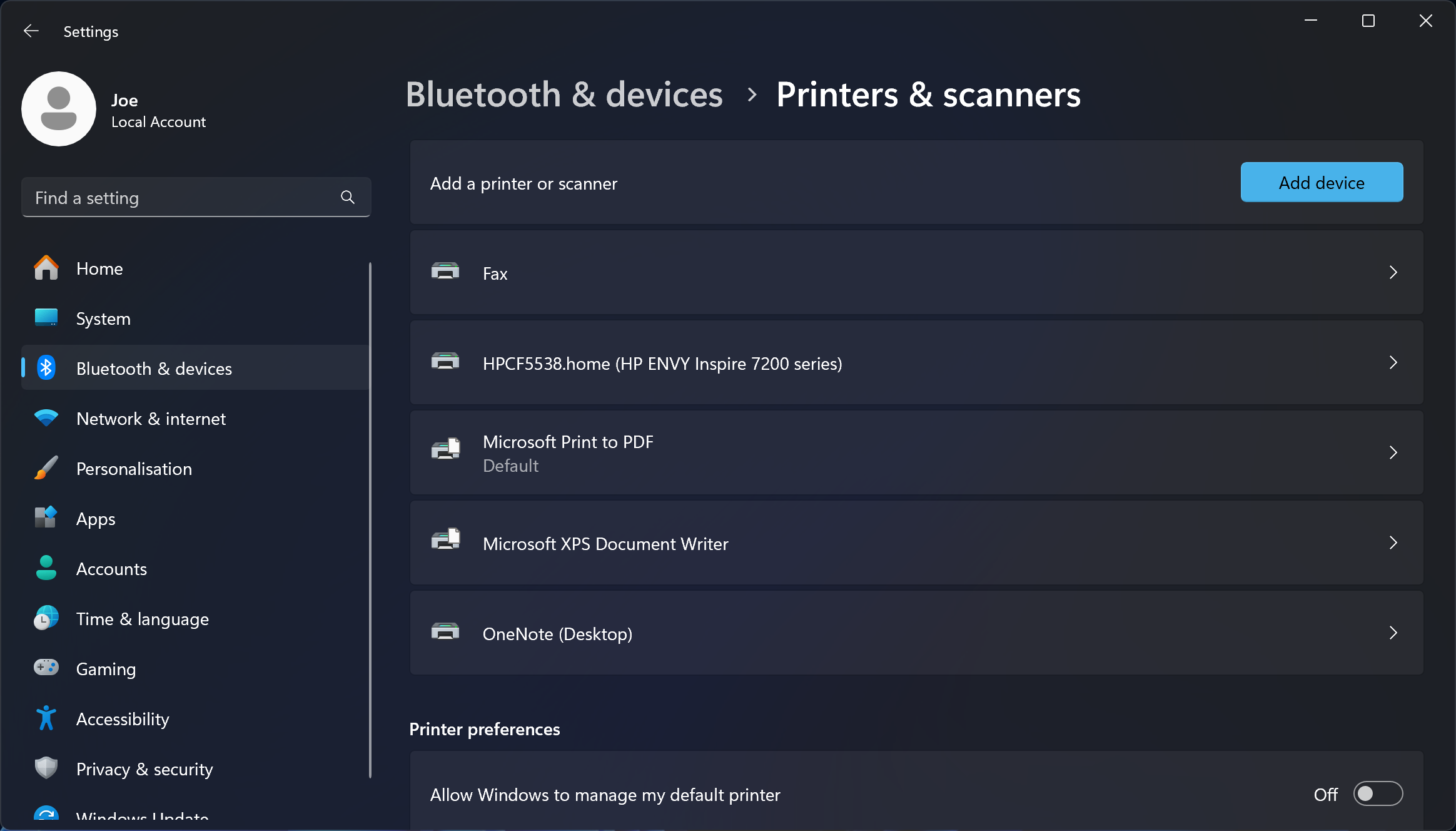
For Windows Users (Windows 11/10):
For macOS Users:
Method 2: Driver and Software Fixes
Resolve driver corruption, spooler issues, and software conflicts
Download and Install Official Printer Drivers
Printer drivers act as translators between your computer and printer. Corrupted or outdated drivers are the leading cause of print failures.
Websites offering "universal drivers" or "driver update tools" often bundle malware, adware, or incorrect drivers that can permanently damage your printer configuration. Always download exclusively from manufacturer websites.
Step-by-Step Driver Installation Process:
Find the model number on a label (usually on the front or back). Example: "HP LaserJet Pro M404dn" not just "HP LaserJet"
- HP: support.hp.com → Enter model number
- Canon: canon.com/support → Search drivers
- Brother: support.brother.com → Downloads
- Epson: epson.com/Support → Drivers & Downloads
Choose the exact version (e.g., "Windows 11 64-bit" or "macOS 14 Sonoma"). Wrong OS selection causes installation failures.
Look for "Full Software Solution" or "Complete Driver Package" rather than "Basic Driver"—full packages include utilities, firmware updaters, and diagnostic tools.
Windows: Settings → Apps → Search for printer name → Uninstall all related software. Then restart.
macOS: Remove the printer from Printers & Scanners, then use the manufacturer's uninstaller if available.
Double-click the downloaded file, follow prompts, and restart your computer when installation completes. Re-add the printer if necessary.
Clear Print Queue and Restart Spooler
Stuck jobs or spooler errors block communication.
Windows:
services.msc → Find "Print Spooler" → Right-click → RestartmacOS:
Method 3: Network Connectivity Fixes
Address Wi-Fi, IP, and firewall problems for network printers
Verify Network Connection and IP Address
Print a network configuration page from the printer's control panel to check status.
- Ensure printer and computer are on the same Wi-Fi network (same SSID)
- Restart router if IP conflicts occur
- Reserve a static IP for the printer in router settings for stability
Check Firewall and Security Software
Antivirus or firewall may block printer ports.
- Temporarily disable third-party antivirus to test
- Windows: Allow printer app through Windows Defender Firewall
- Add exceptions for ports 9100 (raw printing), 515/631 (LPD/CUPS)
Method 4: Advanced Diagnostics
- Update Printer Firmware: Check manufacturer site for updates to fix known bugs.
- Use Manufacturer Tools: HP Print and Scan Doctor, Epson diagnostics, etc.
- Print Test Page Directly from Printer: Confirms hardware is functional independently of computer.
Expert Tips for Prevention
- Keep drivers updated automatically via manufacturer apps.
- Use wired connection for critical printers to avoid Wi-Fi instability.
- Reserve IP address in router for network printers.
- Regularly restart printer and router monthly.
Frequently Asked Questions
Why does my printer go offline after sleep mode?
Power-saving modes can disconnect network links. Disable eco/sleep features or use wired connection.
Is it safe to reset the printing system on Mac?
Yes, but it removes all printers. You'll need to re-add them afterward.
What if nothing works?
Contact manufacturer support with your model number and error details for hardware diagnosis.